Stack Trace
asafaweb – Solving common occuring issues
One of activities that you should always do when building a new website is scan you site for vulnerabilities using the https://asafaweb.com/ .
This will scan your site for common issues like Headers exposed,Click jacking, Custom Errors redirection etc.Some of the common errors which get reported are as follows and their resolution is also given
1) Excessive headers: Warning
This is common error that is displayed especially if you are using IIS and ASP.NET. However this is easy to solve using the ASP.NET application’s web.config file changes
X-Powered-By: ASP.NET
a) In IIS, select the web site. Go to the Http Response Headers option in the Features View. Select X-Powered-By header, and remove it
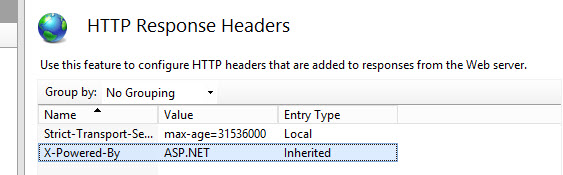
If needed the same can be done in the web.config
<system.webServer>
<httpProtocol>
<customHeaders>
<remove name=”X-Powered-By” />
</customHeaders>
</httpProtocol>
</system.webServer>
X-AspNet-Version: 4.0.30319
In the web.config file of the associated application, add the following section or modify the section to include enableVersionHeader=false in the http runtime
<system.web>
<httpRuntime targetFramework=”4.5″ enableVersionHeader=”false” />
</system.web>
2) Clicking Jacking : Warning
If this error is received, then add an entry in the web.config file under the customer header section
<customHeaders>
<add name=”X-Frame-Options” value=”SAMEORIGIN” />
</customHeaders>
3) Custom errors: Fail
If this error appears, then in the web.config file make sure the default redirect on error is set so that users are exposed to the actual stack trace. This is very similar to exception sheilding
<customErrors mode=”RemoteOnly” defaultRedirect=”~/DefaultErrorPage.aspx” />
4) Stack trace: Fail
Very similar to custom errors, in the set the custom errors mode to either RemoteOnly or On
<customErrors mode=”RemoteOnly”/>
5) Secure Cookies : Fail
Add the following entry in the web.config. Make sure that your site is enabled for https. If there any http then the session variables will not work.
<system.web><httpCookies requireSSL=”true” /></system.web>
Hope this helps. In case of any question, post questions in the comments section.
 In the Zone